> For the complete documentation index, see [llms.txt](https://docs.xygeni.io/llms.txt). Markdown versions of documentation pages are available by appending `.md` to page URLs; this page is available as [Markdown](https://docs.xygeni.io/getting-started/quick-start-with-xygeni-gui.md).
# Quick start with Xygeni GUI
Xygeni GUI app is a graphical wrapper for the Xygeni CLI. It is used to run a basic initial scan and directly access the scan results. If the Xygeni CLI is not already installed on your system (if it is not configured as a command in the PATH), the Xygeni GUI will download it to your local environment (usually $HOME/.xygeni). This eliminates the need to manually download the scanner to use the Xygeni GUI.
Xygeni GUI does not include all the features of the Xygeni CLI. It is used to launch a scan by simply selecting the location of the repository or local directory to analyze, the name, and the scanners you want to run.
You can follow the steps below for a quick start guide to using the Xygeni GUI:
1. [Install the Xygeni GUI](#id-1.-how-to-install)
2. [Fetch your Xygeni API token](#fetch_your_xygeni_account_credentials_or_api_token)
3. [Introduce the token in the Xygeni Token textfield](#fetch_your_xygeni_account_credentials_or_api_token-1)
4. [Select a local directory and application name](#id-4.-select-a-local-directory-and-application-name)
5. [Run the scan](#id-5.-run-the-scan)
6. [Open the results](#id-6.-open-the-results)
### 1. How to install
The following software is required for the Xygeni scanner to work properly
{% tabs %}
{% tab title="Linux" %}
* Download the Xygeni Local Scanner compressed file from [here](https://get.xygeni.io/latest/scanner/xgard/XygeniLocalScanner-v1.0.0.tar.gz).
* Decompress the file
* Give the "execute.sh" file execution rights
* Run the execut.sh file
{% endtab %}
{% tab title="Windows" %}
* Download the Xygeni Local Scanner msi file from [here](https://get.xygeni.io/latest/scanner/xgard/XygeniLocalScanner-v1.0.0.msi).
* Execute the "XygeniLocalScanner.msi" file
* Customize the installation according to your preferences
* Go to the Search bar and search "XygeniLocalScanner"
* Open the application
{% endtab %}
{% endtabs %}
{% hint style="info" %}
For more information about the different screens go [here](/xygeni-scanner-cli/xygeni-gui-overview.md).
{% endhint %}
### 2. Fetch your Xygeni API token
{% hint style="info" %}
Active Xygeni account credentials are mandatory to run the script, so make sure you’ve signed up first! Visit [Create a Free Trial account](/getting-started/create-a-free-trial-account.md) or [Log in to Xygeni](/getting-started/log-in-to-xygeni.md)
{% endhint %}
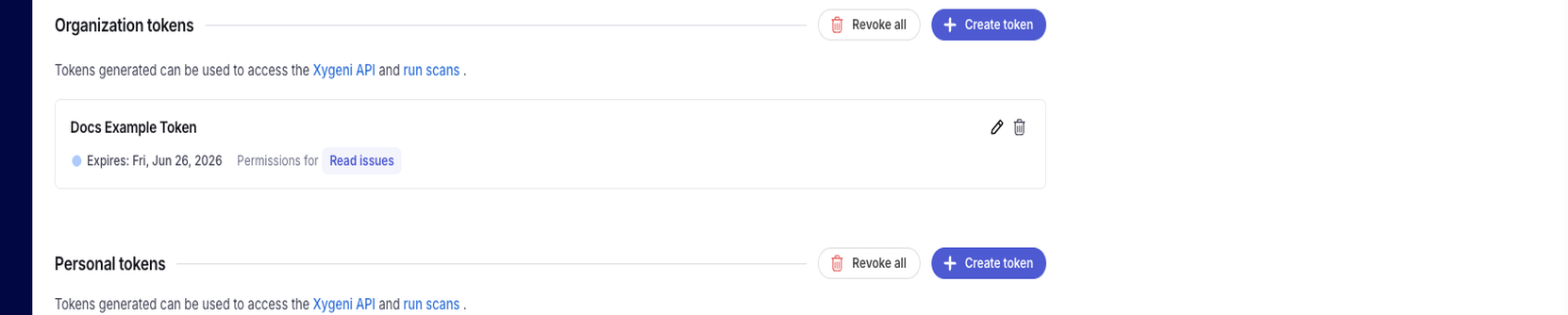
Go your [security pannel](https://in.xygeni.io/dashboard/settings/security) and navigate to Organization/Personal Tokens:
Create a new token. The difference betweeen Organization tokens and Personal tokens is who can see and revoke those tokens. Select either one and generate a new token.
In order to run scans, the only permission that is needed is the "Upload scan results" permission. However, if you want to use the same token with the REST API, you’ll need to grant it additional permissions.
### 3. Introduce the token in the Xygeni Token textfield
Paste or write the token that was fetched on the last step on the Xygeni Token text field. You can use the Eye icon to see the value of the written text.
If the token is valid, a green glow will appear.
### 4. Select a local directory and application name
Introduce the path to a directory to be scanned. You can do this using the folder button, which will open the system's directory selector. If the introduced value is not a valid directory, the textfield will have a red glow.
Optionally, you can specify a name for the project to be scanned; otherwise, the name of the entered folder will be used.
### 5. Run the scan
Press the launch scan button to run the scanner.
### 6. Open the results
When the scan is complete, the results button will become active. Pressing it will take you to the Dashboard results screen.
---
# Agent Instructions
This documentation is published with GitBook. GitBook is the documentation platform designed so that both humans and AI agents can read, navigate, and reason over technical content effectively. Learn more at gitbook.com.
## Querying This Documentation
If you need additional information that is not directly available in this page, you can query the documentation by asking a question.
Perform an HTTP GET request on the following URL with the `ask` and `goal` query parameters:
```
GET https://docs.xygeni.io/getting-started/quick-start-with-xygeni-gui.md?ask=&goal=
```
`ask` is the immediate question: it should be specific, self-contained, and written in natural language.
`goal` is what the user is ultimately trying to achieve, the reason they need the answer. Sharing it helps GitBook give you a better, more relevant answer. A goal is most helpful when it describes the outcome the user wants rather than restating the question. For example, with `ask=how do I create an API token`, a goal like `automate deployments from our CI pipeline` lets GitBook tailor the answer to that use case.
The response will contain a direct answer to the question and relevant excerpts and sources from the documentation.
Use this mechanism when the answer is not explicitly present in the current page, you need clarification or additional context, or you want to retrieve related documentation sections.