> For the complete documentation index, see [llms.txt](https://docs.xygeni.io/llms.txt). Markdown versions of documentation pages are available by appending `.md` to page URLs; this page is available as [Markdown](https://docs.xygeni.io/xygeni-scanner-cli/xygeni-gui-overview.md).
# Xygeni GUI Overview
## What is Xygeni GUI
Xygeni GUI app is a graphical wrapper for the Xygeni CLI. It is used to run a basic initial scan and directly access the scan results. If the Xygeni CLI is not already installed on your system (if it is not configured as a command in the PATH), the Xygeni GUI will download it to your local environment (usually $HOME/.xygeni). This eliminates the need to manually download the scanner to use the Xygeni GUI.
Xygeni GUI does not include all the features of the Xygeni CLI. It is used to launch a scan by simply selecting the location of the repository or local directory to analyze, the name, and the scanners you want to run.
## Prerequisites
Please take a look to the prerequisites of the scanner as the GUI will use this scanner in background:
## How to Install
The following software is required for the Xygeni scanner to work properly
{% tabs %}
{% tab title="Linux" %}
* Download the Xygeni Local Scanner compressed file from [here](https://get.xygeni.io/latest/scanner/xgard/XygeniLocalScanner-v1.0.0.tar.gz).
* Decompress the file
* Give the "execute.sh" file execution rights
* Run the execut.sh file
{% endtab %}
{% tab title="Windows" %}
* Download the Xygeni Local Scanner msi file from [here](https://get.xygeni.io/latest/scanner/xgard/XygeniLocalScanner-v1.0.0.msi).
* Execute the "XygeniLocalScanner.msi" file
* Customize the installation according to your preferences
* Go to the Search bar and search "XygeniLocalScanner"
* Open the application
{% endtab %}
{% endtabs %}
## How to use
Xygeni Local Scanner use is the same in Linux, Windows and Mac, so this guide applies to all operating systems.
### Installation Screen
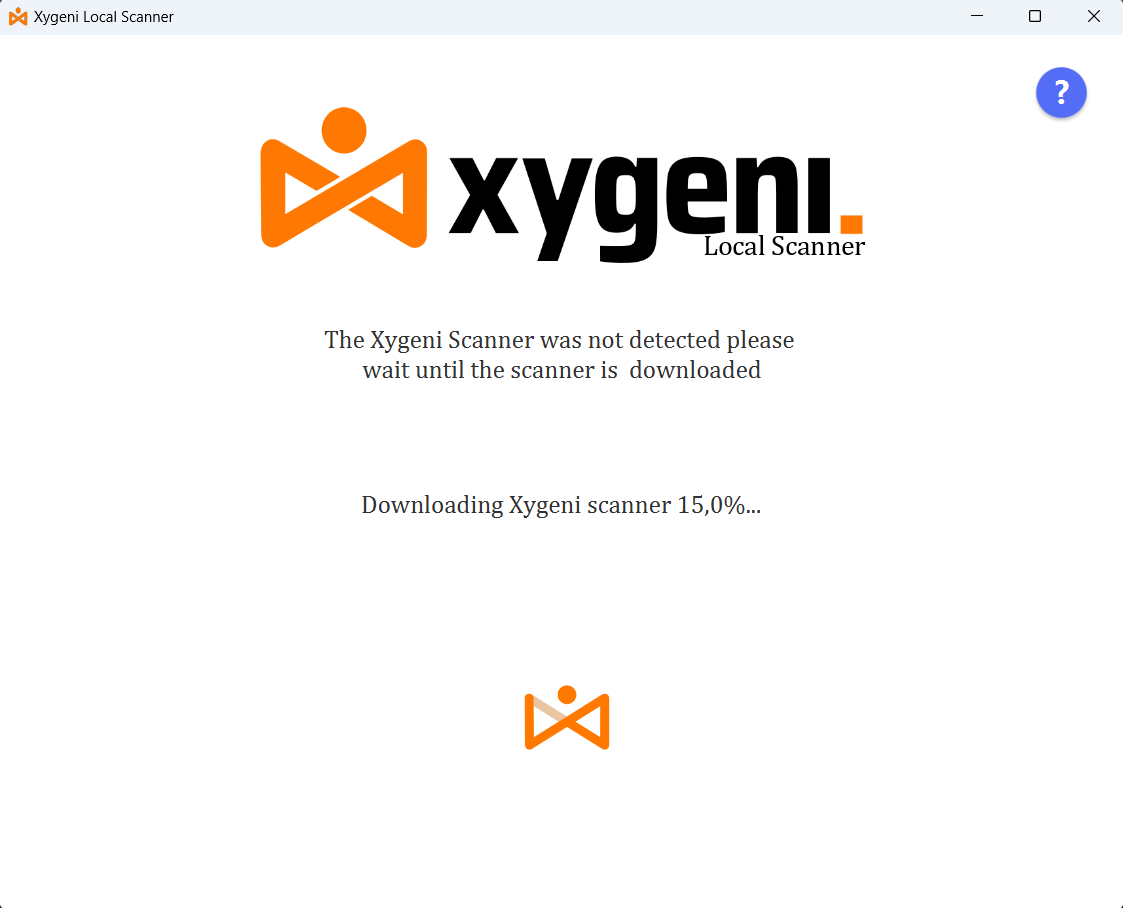
Xygeni Local Scanner checks whether the Xygeni CLI Scanner is already installed. It first looks for it as a program available in the system PATH. If it is not found, it then searches in the user’s home directory under .XygeniLocalScanner/xygeni\_scanner. If the scanner is not present in either of these two locations, it will be downloaded automatically, and the following screen will be displayed.
Xygeni Local Scanner Installation Screen
This screen appears when the Xygeni CLI Scanner is not detected on the system. It includes a help button that redirects the user to this guide, a status message that updates dynamically to inform the user about the current progress, and an animated loading spinner that shows the application is still running. When the dowload is completed, this screen will change automatically to the following screen.
### Main Screen
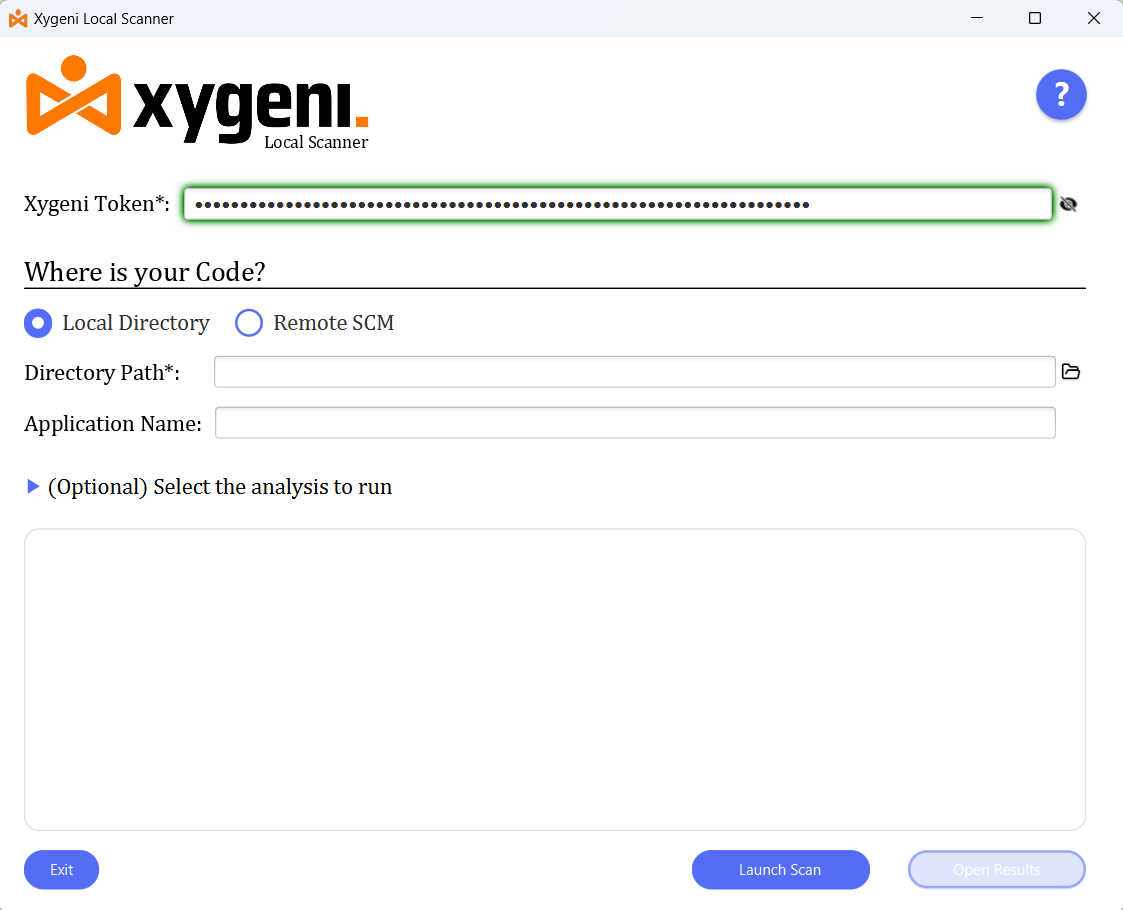
#### Xygeni Token
The **Xygeni Token** field represents the authentication token used to authenticate with the Xygeni server.\
By default, the token is **masked** and displayed as dots to protect sensitive information. An **eye-icon button** allows the user to toggle the token’s visibility on demand.
The application performs real-time validation of the token by calling Xygeni’s internal API. This API uses the **`XYGENI_URL`** environment variable; if the variable is not defined, the default endpoint **`https://api.xygeni.io`** is used.
The field is highlighted **red** when the token is invalid, and **green** when the token has been successfully validated.
#### Location and name selector
This section allows the user to choose where the code to be analyzed is located:
* **Local Directory**: Allows the user to specify a local directory. It also enables a folder icon button that opens a directory selection dialog.
* **Remote SCM**: Allows the user to specify a repository hosted in a remote source control management system.
If the selected directory or repository URL is invalid, the corresponding input field is highlighted **red**.
The **Application Name** field is optional and allows the user to assign a custom name to the project as it will appear in the Xygeni dashboard.
#### (Optional) Customize the Scan
This dropdown contains the full list of available Xygeni analyzers. Each analyzer has its own checkbox so the user can select which analyses to execute during the scan.
All analyzers are **enabled by default**.
#### Launch the scan
To start a scan, the user must fill in at least the following:
* A valid **Xygeni Token**
* A **local directory path** or a **remote repository URL**
* Also, at least one analyzer must be enabled.
Once the required fields are provided, the user can initiate the process by clicking the **Launch Scan** button.
#### Access to the results
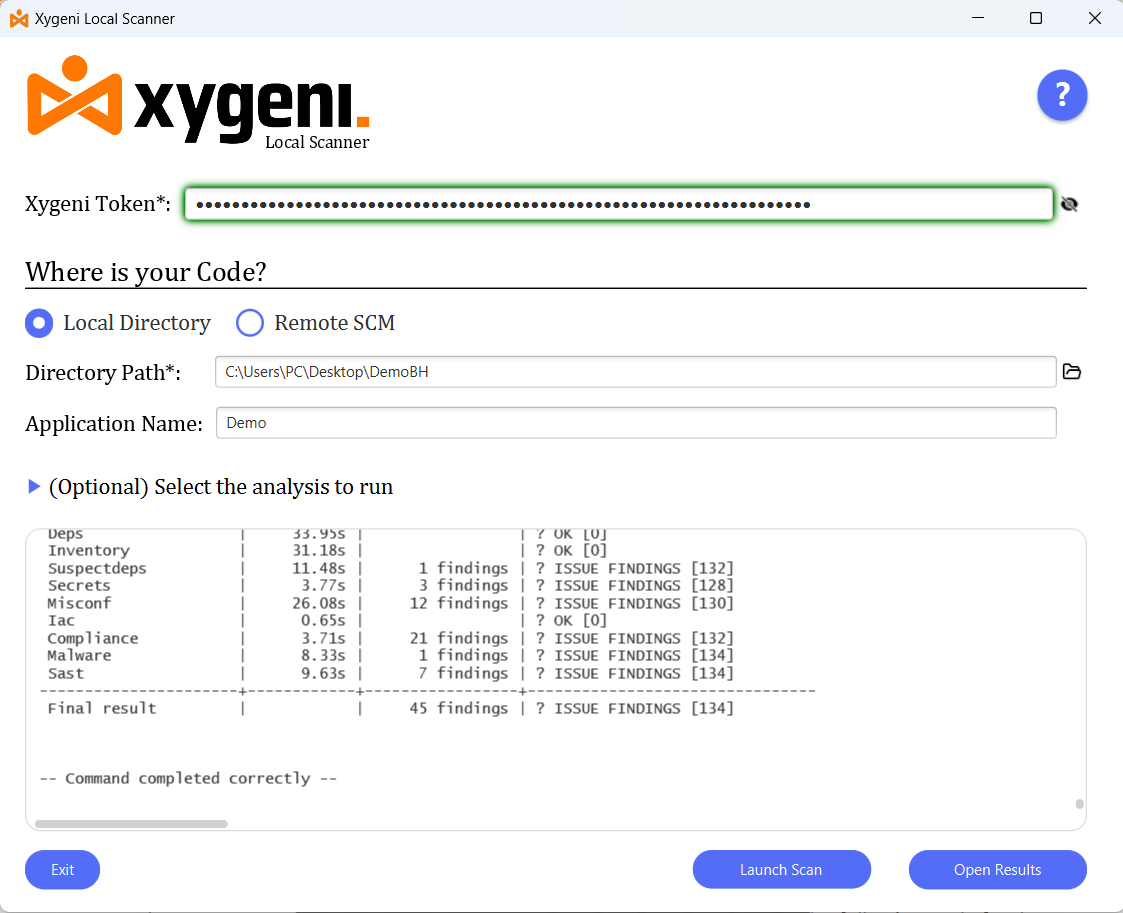
A dedicated output area displays the scanner logs in real time as the analysis progresses.
When the scan completes successfully, the **Open Results** button becomes enabled. Clicking this button opens the Xygeni dashboard in the default web browser, showing the results for the project that has just been analyzed
#### Other functionalities
This screen also counts with a help button that will open this guide on the default browser. And an exit button to finalize the execution of the app.
### Main Screen after launching an Scan
---
# Agent Instructions
This documentation is published with GitBook. GitBook is the documentation platform designed so that both humans and AI agents can read, navigate, and reason over technical content effectively. Learn more at gitbook.com.
## Querying This Documentation
If you need additional information that is not directly available in this page, you can query the documentation by asking a question.
Perform an HTTP GET request on the following URL with the `ask` and `goal` query parameters:
```
GET https://docs.xygeni.io/xygeni-scanner-cli/xygeni-gui-overview.md?ask=&goal=
```
`ask` is the immediate question: it should be specific, self-contained, and written in natural language.
`goal` is what the user is ultimately trying to achieve, the reason they need the answer. Sharing it helps GitBook give you a better, more relevant answer. A goal is most helpful when it describes the outcome the user wants rather than restating the question. For example, with `ask=how do I create an API token`, a goal like `automate deployments from our CI pipeline` lets GitBook tailor the answer to that use case.
The response will contain a direct answer to the question and relevant excerpts and sources from the documentation.
Use this mechanism when the answer is not explicitly present in the current page, you need clarification or additional context, or you want to retrieve related documentation sections.