> For the complete documentation index, see [llms.txt](https://docs.xygeni.io/llms.txt). Markdown versions of documentation pages are available by appending `.md` to page URLs; this page is available as [Markdown](https://docs.xygeni.io/xygeni-products/scan-management/scan-history.md).
# Scan History
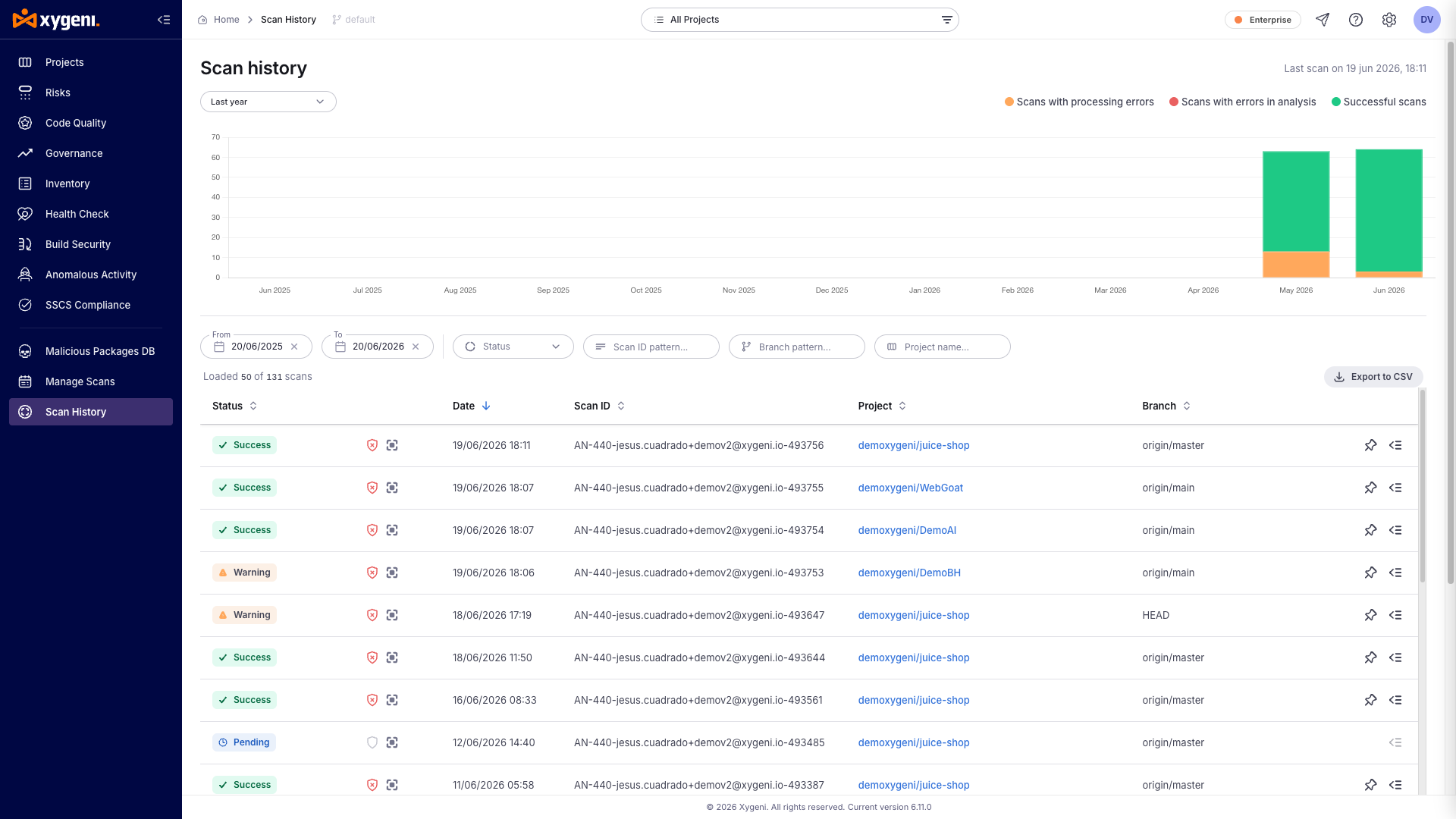
The Scan History view in Xygeni provides a timeline-based breakdown of all scans performed on repositories, pipelines, or environments. It offers detailed visibility into:
* When scans occurred
* Which scans succeeded, failed or have a Warning (Warning means that at least one partial scan has an error and at least one partial scan succeeded)
* What issues or compliance results were generated
### Filters & Controls
**You can filter this table by:**
* **Status** (Success, Error or Warning)
* **Scan ID Pattern**
* **Branch Pattern**
* **Inventory** (All, Scanned, Not Scanned)
* **Issues** (Present, Not Present)
* **Compliance** (Passed, Failed)
### Scan Records Table
| Column | Description |
| -------------- | -------------------------------------------------------- |
| **Status** | Result of the scan (`Success`, `Error`, `Warning`) |
| **Timestamp** | When the scan was executed |
| **Scan ID** | Unique ID for audit trail |
| **Project** | Target repo/project name |
| **Branch** | Branch scanned (if known) |
| **Inventory** | Whether a software bill of materials (SBOM) was included |
| **Issues** | Indicates if any findings were detected |
| **Compliance** | Indicates if compliance checks were passed/failed |
| **Actions** | "Mark as baseline" or "View details" |
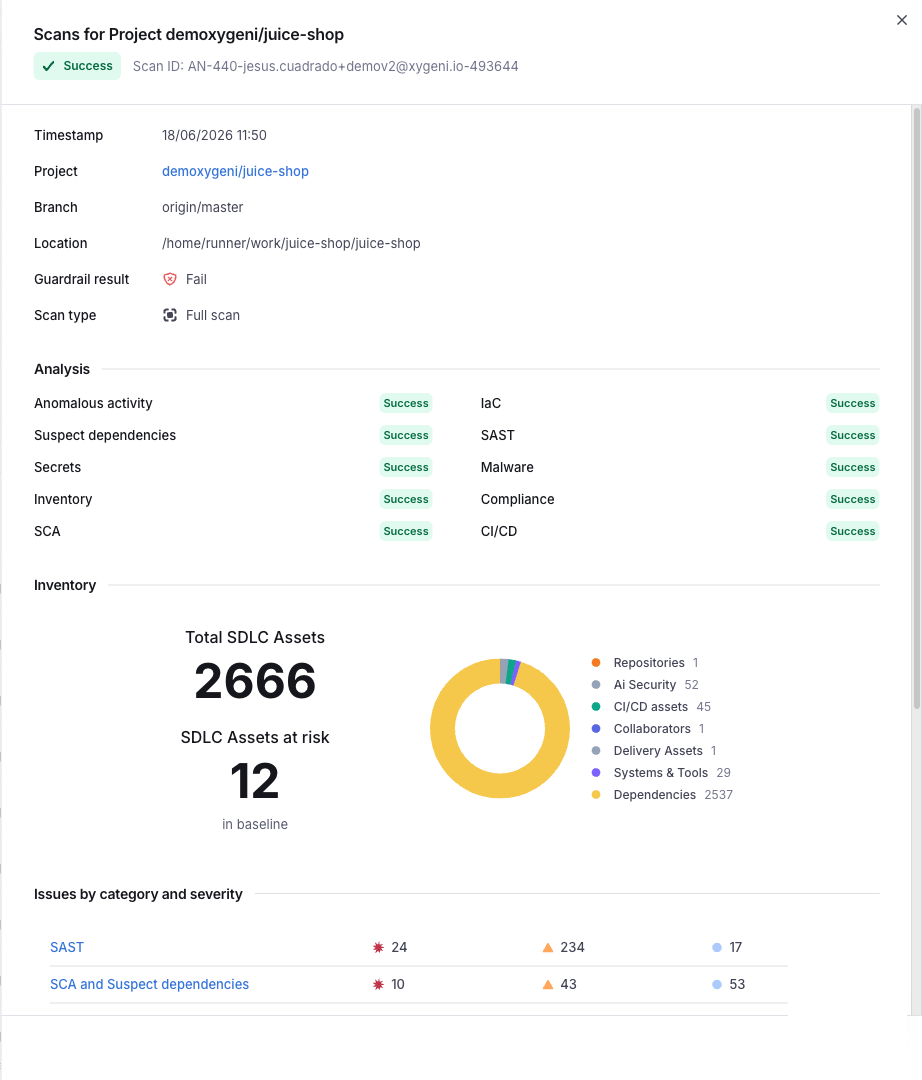
### Scan detail
This view also provide a detail of each scan performed. This detail include a summary with all the partial scans termination, a summary of the Inventory (SBOM) of the project, a table with the counts of the issues divided by category and severity and a summary of the compliance scan.
---
# Agent Instructions
This documentation is published with GitBook. GitBook is the documentation platform designed so that both humans and AI agents can read, navigate, and reason over technical content effectively. Learn more at gitbook.com.
## Querying This Documentation
If you need additional information that is not directly available in this page, you can query the documentation by asking a question.
Perform an HTTP GET request on the following URL with the `ask` and `goal` query parameters:
```
GET https://docs.xygeni.io/xygeni-products/scan-management/scan-history.md?ask=&goal=
```
`ask` is the immediate question: it should be specific, self-contained, and written in natural language.
`goal` is what the user is ultimately trying to achieve, the reason they need the answer. Sharing it helps GitBook give you a better, more relevant answer. A goal is most helpful when it describes the outcome the user wants rather than restating the question. For example, with `ask=how do I create an API token`, a goal like `automate deployments from our CI pipeline` lets GitBook tailor the answer to that use case.
The response will contain a direct answer to the question and relevant excerpts and sources from the documentation.
Use this mechanism when the answer is not explicitly present in the current page, you need clarification or additional context, or you want to retrieve related documentation sections.