> For the complete documentation index, see [llms.txt](https://docs.xygeni.io/llms.txt). Markdown versions of documentation pages are available by appending `.md` to page URLs; this page is available as [Markdown](https://docs.xygeni.io/xygeni-products/ai-security/ai-security-user-interface-guide.md).
# AI Security User Interface Guide
AI Security User Interface can be accessed by selecting the **AI** option under the [Risks](/xygeni-products/application-security-posture-management-aspm/all-risks.md) tab.
AI Risks
### AI Risks
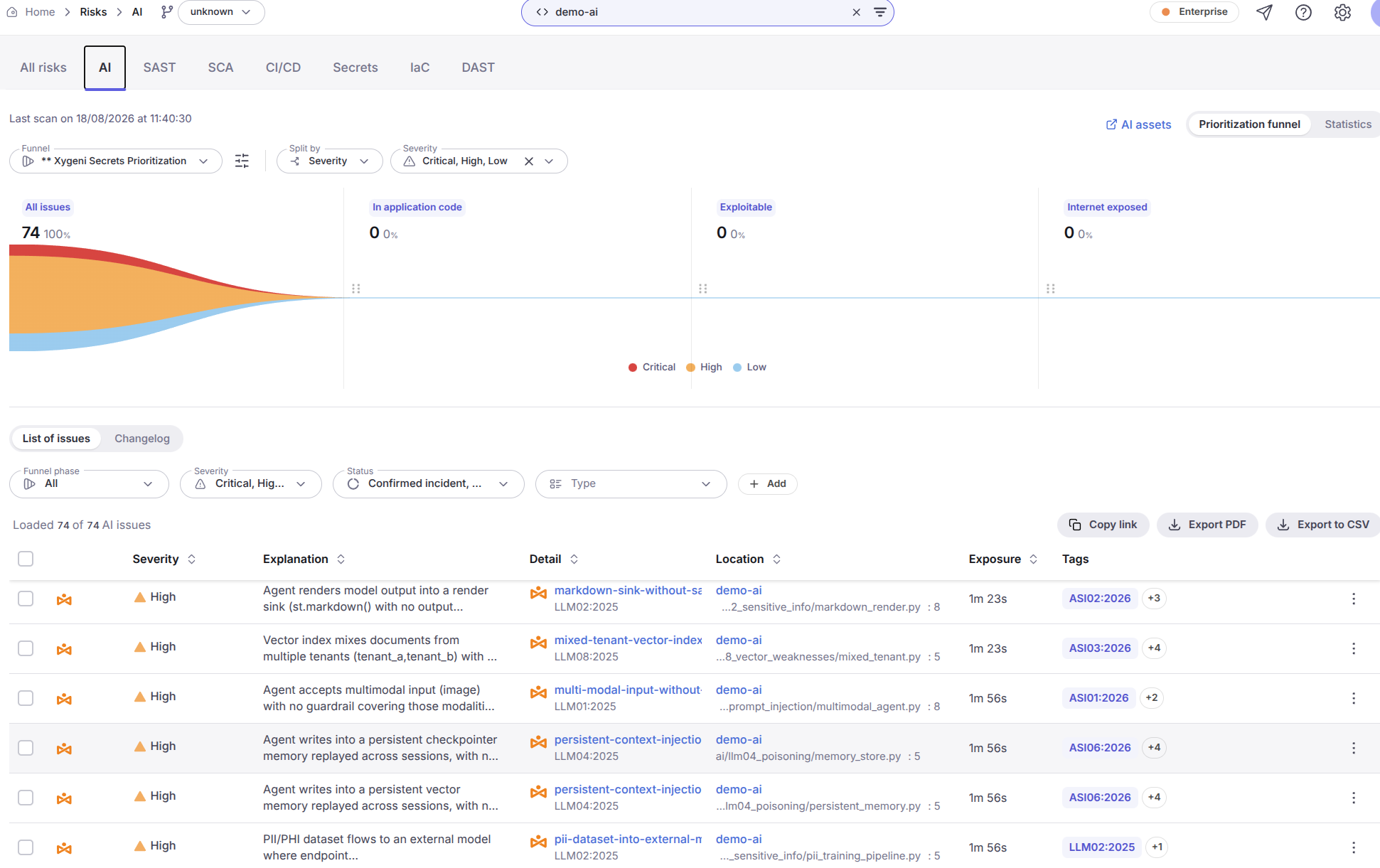
The **AI** tab lists every AI Security issue detected in the last scan of the selected project(s). As with the other risk types, issues flow through the [Prioritization Funnel](/introduction-to-xygeni/prioritization-funnels.md) so you can focus first on the findings that are in application code, exploitable, or internet exposed. The funnel can be **split by severity** (Critical, High, Low) or by other dimensions.
The issues table shows, for each AI Security finding:
* **Severity** — the detector's severity, from Critical to Info.
* **Explanation** — what the detector found (e.g., *"System prompt concatenates user-controlled content with no role separation, delimiter, or input guardrail"*).
* **Detail** — the **detector name** (e.g., `skill-instructions-review`), linked to the official OWASP GenAI risk page when the finding maps to an **OWASP LLM Top 10 (2025)** category, with the OWASP code (`LLM01:2025`) underneath.
* **Location** — the project, file, and line where the issue was detected (e.g., `app/prompts/registry_loader.py:23`).
* **Exposure** — how long the issue has been present.
* **Tags** — the affected **AI asset kind** (`Ai prompt`, `Ai skill`, `Ai agent`, ...) and the **red-team attack vectors** that apply to the finding (`Prompt injection`, `Ragpoisoning`, `Jailbreaks`, ...), plus the OWASP agentic-taxonomy codes (`ASI01:2026`, `AST01:2026`, ...).
The list can be filtered by **funnel phase**, **project**, **severity**, **status** (e.g., *Confirmed incident*), **type** (OWASP category), **tool**, and **AI triage result**. As with any other risk family, you can change an issue's status, snooze it, add custom tags, copy a link to a finding, create a **Jira / GitHub ticket**, run **AI Triage** on the selected issues in bulk, or export the list (**CSV / PDF**).
Besides the funnel, the header toggle switches to the **Statistics** view (issue counters and trends), and the **List of issues / Changelog** toggle switches the table to the **Changelog** — the diff of AI findings (added / removed) between two scans.
### AI Issue Details
Clicking on a row (or its *View Details* action) opens the **AI issue detail** slide-in:
* **Properties** — explanation, detector type, **OWASP category** (linked to the official genai.owasp.org risk page), detection confidence, the affected **asset** (with its kind) and related assets, red-team vectors, and the AI tool.
* **AI Triage** — when the scanner's optional [LLM semantic review](/xygeni-products/ai-security/ai-security-scanner/ai-security-scanner-configuration.md#llm-semantic-review-stage-2) already judged the finding, its verdict is shown; otherwise a *Run AI triage* action is offered.
* **Status & comments** — the triage status (editable in place) and the comment thread of the finding.
* **Description**, **Code** (the offending source snippet), and **Mitigation** guidance, plus **References** to the detector documentation.
* Footer actions: *Read Docs*, *Create Jira / GitHub Ticket*, *Change Status*, *Snooze / Unsnooze*, and *Disable check*.
### AI Assets
The **AI assets** link at the top-right of the funnel opens the [AI Assets Inventory](/xygeni-products/application-security-posture-management-aspm/inventory/ai-assets.md), listing the AI assets (models, frameworks, datasets, inference endpoints, agents, agent servers, tools, skills, prompts, guardrails, vector stores, and coding tools) discovered in your repositories. AI Security findings are cross-linked to the inventoried assets they affect, so you can navigate from a risk to the asset — and from an asset to all the risks raised on it. The inventory can also be exported as an [AI-BOM](/xygeni-products/application-security-posture-management-aspm/inventory/ai-assets.md#download-ai-bom) (CycloneDX 1.6 ML-BOM).
---
# Agent Instructions
This documentation is published with GitBook. GitBook is the documentation platform designed so that both humans and AI agents can read, navigate, and reason over technical content effectively. Learn more at gitbook.com.
## Querying This Documentation
If you need additional information that is not directly available in this page, you can query the documentation dynamically by asking a question.
Perform an HTTP GET request on the current page URL with the `ask` query parameter, and the optional `goal` query parameter:
```
GET https://docs.xygeni.io/xygeni-products/ai-security/ai-security-user-interface-guide.md?ask=&goal=
```
`ask` is the immediate question: it should be specific, self-contained, and written in natural language.
`goal` is optional and describes the broader end goal you are ultimately trying to accomplish on behalf of the user. GitBook uses it to tailor the answer towards what is most useful for that goal.
The response will contain a direct answer to the question and relevant excerpts and sources from the documentation.
Use this mechanism when the answer is not explicitly present in the current page, you need clarification or additional context, or you want to retrieve related documentation sections.