> For the complete documentation index, see [llms.txt](https://docs.xygeni.io/llms.txt). Markdown versions of documentation pages are available by appending `.md` to page URLs; this page is available as [Markdown](https://docs.xygeni.io/xygeni-products/scan-management/managed-scans.md).
# Manage Scans
## Creating an Integration with your SCM
Xygeni provides a quick way to scan your repositories directly from the UI. With this functionality (named **Managed Scans**) you will be able to scan your repos and Xygeni will manage everything behind the scenes.
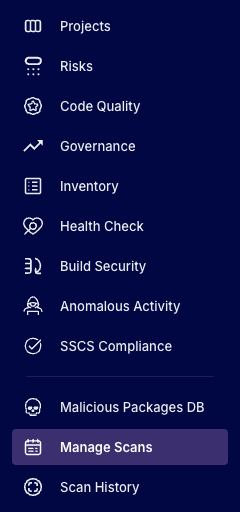
First, go to **Manage Scans** in the **Navigation Bar:**
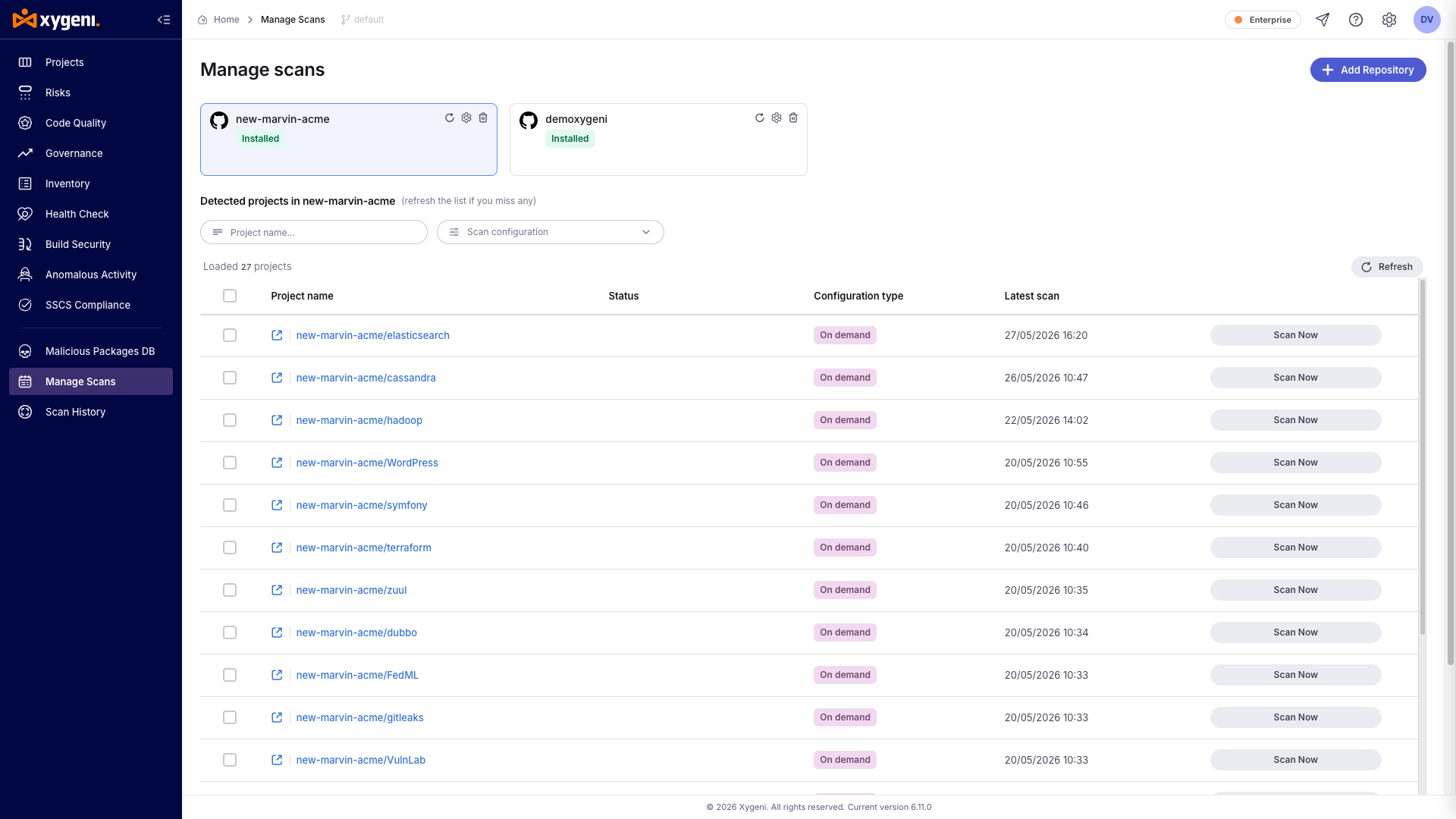
The **Managed Scans** page will open.
Click on **Add Repository** button to create an integration with your SCM. A dialog will open to select your SCM:
For this example, we will use GitHub. So clicking on GitHub will install **Xygeni GitHub Application.**
As you can see below, the installation procedure will let you specify the scope of the installation (user- or organization-level)
The installation will ask you to grant permission to **Xygeni GitHub Application** to all or only selected repositories.
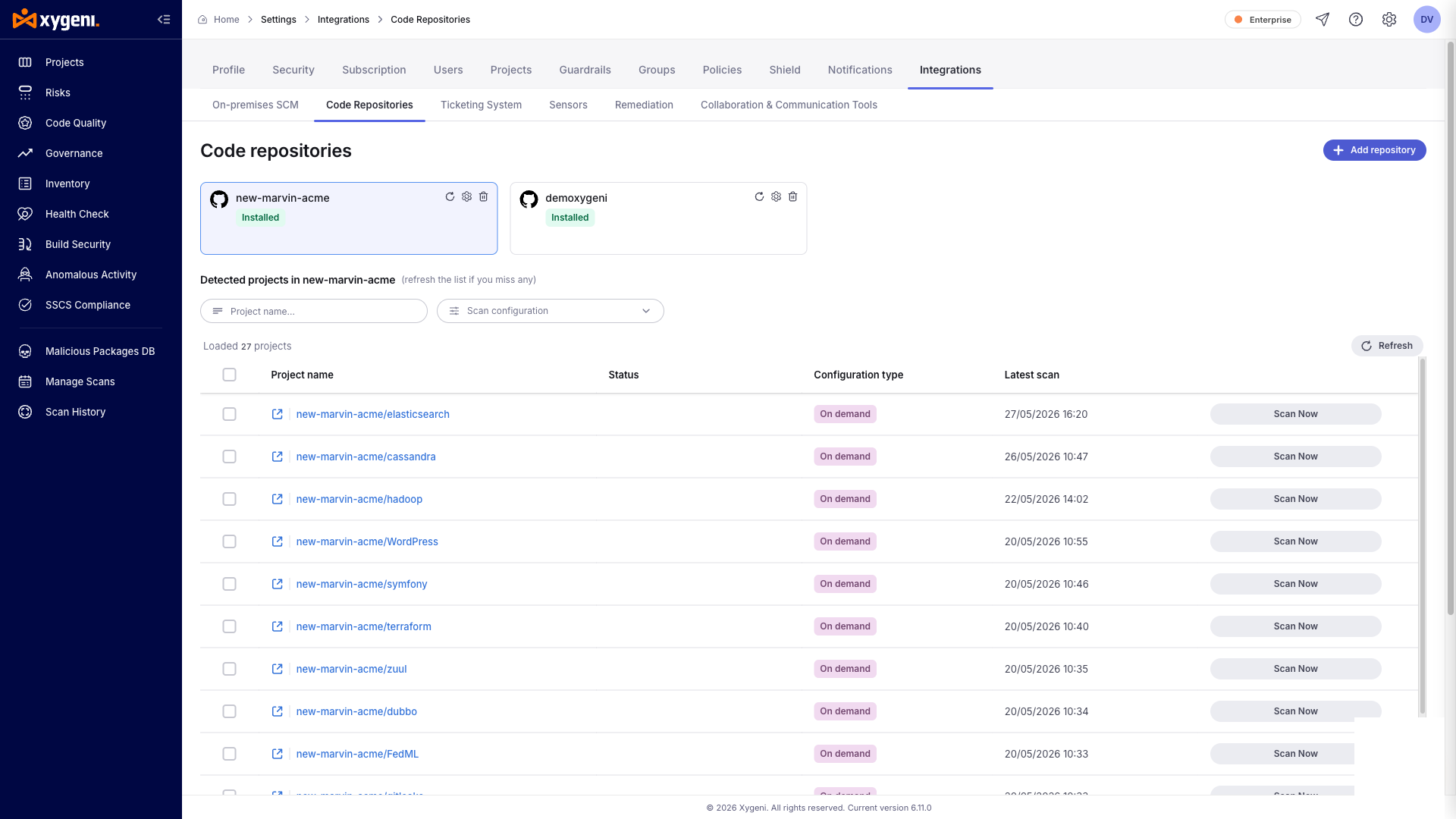
After clicking on **Install & Authorize** button, Managed Scans page will display the new integration.
It also display a table listing the granted repositories (this list depends on previous step).
{% hint style="info" %}
You can create as many integrations as you wish. Just click on any integration and the list of repos will be refreshed accordingly.
{% endhint %}
Any integration has some available actions:
* Clicking on the  icon of an integration allows you to delete the integration.
* Clicking on the  icon of an integration will refresh the list of repos.
* Clicking on the  icon of an integration will take you to Xygeni GitHub App configuration page.
Once that you get your list of repositories you can execute scans as follows.
{% hint style="info" %}
Once that you hace created an integration and you can see the list of repos, you can execute scans in different ways:
1. Scanning a repo **on-demand**
2. Programming a **daily scan** of the repo
3. Executing the **scan on Pull Requests**
Follow below instructions on every method.
{% endhint %}
### On-Demand Scan
Clicking on the **Scan Now** button of any repo will execute a scan on that repo.
If you go now to GitHub, you will see a workflow running the scan:
Xygeni automatically created a GitHub workflow into the selected repo.
The workflows would be like this:
In the last line you can see that Xygeni has created a **secret (XYGENI\_TOKEN)** in the repo with the Xygeni token (needed to authenticate against Xygeni, to execute the scan and upload the results to Xygeni platform).
{% hint style="info" %}
After the scan is completed, you **can find the results in the Xygeni** [**Dashboard**](/introduction-to-xygeni/xygeni-web-ui-overview/dashboard.md). The name of your project will be the same as your repo name.
You can configure to be **notified when the scan is finished**. See [Notifications](/xygeni-administration/platform-administration/notifications.md).
{% endhint %}
### Daily Scan
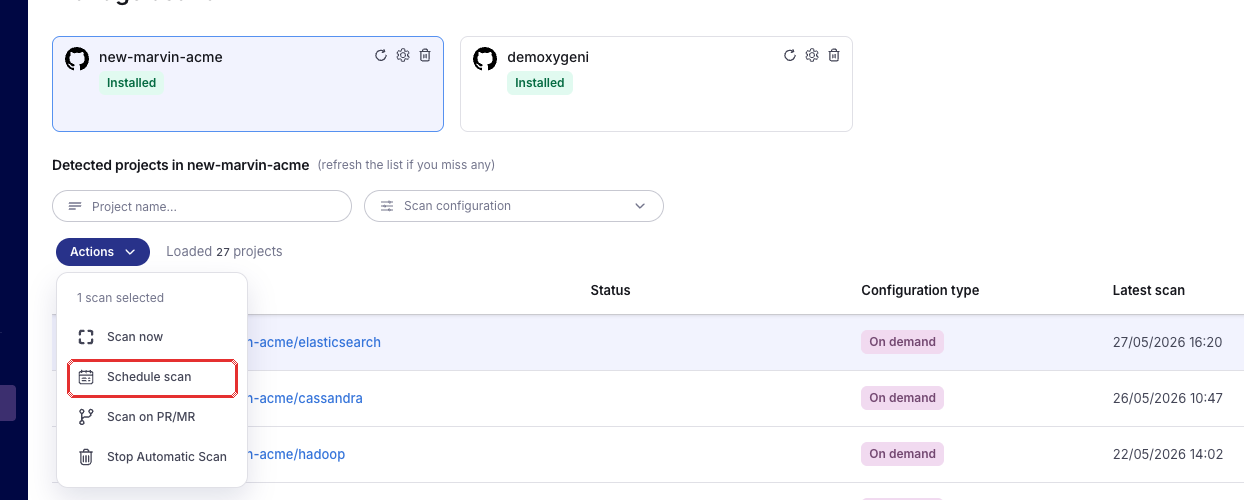
Another option is to schedule the scan.
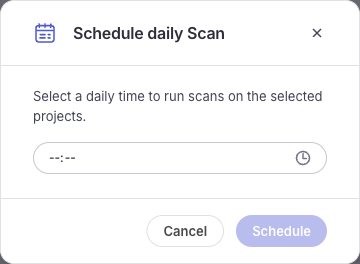
To do it, select any repo and click on **Scheduled Scan** button.
A dialog will open to select the time to execute the scan:
{% hint style="info" %}
Please note that the specified time is according to your time zone, but it will be converted to to UTC time zone in the workflow
{% endhint %}
Once it is done, you will see the scheduling information:
The created workflow will be like this:
In the last line you can see that Xygeni has created a **secret (XYGENI\_TOKEN)** in the repo with the Xygeni token (needed to authenticate against Xygeni, to execute the scan and upload the results to Xygeni platform).
{% hint style="info" %}
After the scan is completed, you **can find the results in the Xygeni** [**Dashboard**](/introduction-to-xygeni/xygeni-web-ui-overview/dashboard.md). The name of your project will be the same as your repo name.
You can configure to be **notified when the scan is finished**. See [Notifications](/xygeni-administration/platform-administration/notifications.md).
{% endhint %}
If you need to **un-schedule the scan**, you only need to click on the **Stop Automatic Scan** button.
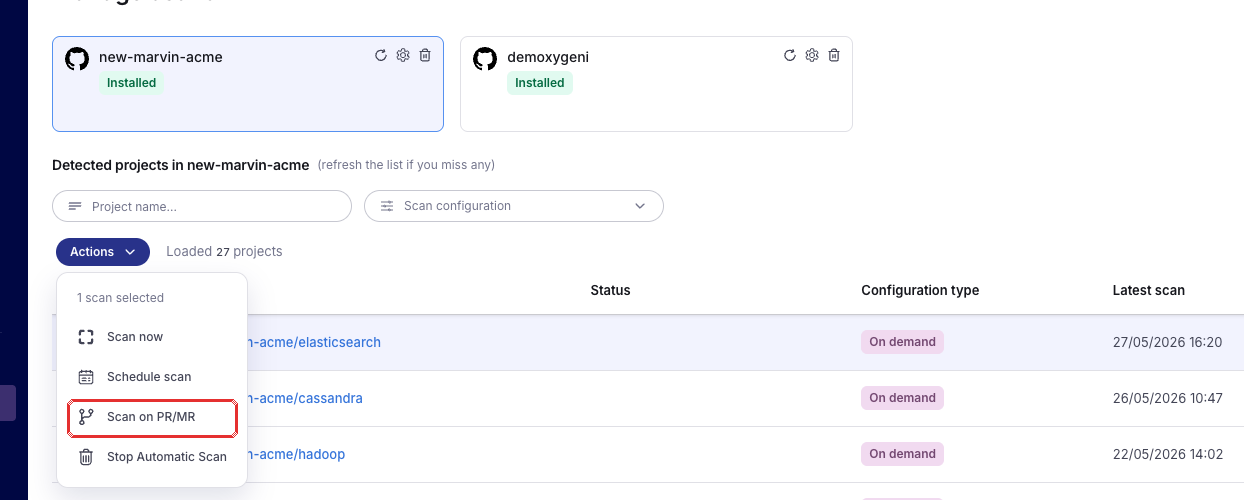
### Scan on Pull Request or Merge Request
Another option is to configure the scan to be executed upon a Pull Request against the default branch.
In this case, whenever any branch wants to merge ti the default branch the scan will be executed over the branch code.
To do it, select any repo and click on **Scan on PR/MR** button.
The created workflow will be like this:
In the last line you can see that Xygeni has created a **secret (XYGENI\_TOKEN)** in the repo with the Xygeni token (needed to authenticate against Xygeni, to execute the scan and upload the results to Xygeni platform).
{% hint style="info" %}
After the scan is completed, you **can find the results in the Xygeni** [**Dashboard**](/introduction-to-xygeni/xygeni-web-ui-overview/dashboard.md). The name of your project will be the same as your repo name.
You can configure to be **notified when the scan is finished**. See [Notifications](/xygeni-administration/platform-administration/notifications.md).
{% endhint %}
## Managed Scans FAQ
Having questions about managed scans? Check our [Managed Scans FAQ](/xygeni-products/scan-management/managed-scans/manage-scans-faq.md) for answers to common questions and troubleshooting tips.
---
# Agent Instructions
This documentation is published with GitBook. GitBook is the documentation platform designed so that both humans and AI agents can read, navigate, and reason over technical content effectively. Learn more at gitbook.com.
## Querying This Documentation
If you need additional information that is not directly available in this page, you can query the documentation by asking a question.
Perform an HTTP GET request on the following URL with the `ask` and `goal` query parameters:
```
GET https://docs.xygeni.io/xygeni-products/scan-management/managed-scans.md?ask=&goal=
```
`ask` is the immediate question: it should be specific, self-contained, and written in natural language.
`goal` is what the user is ultimately trying to achieve, the reason they need the answer. Sharing it helps GitBook give you a better, more relevant answer. A goal is most helpful when it describes the outcome the user wants rather than restating the question. For example, with `ask=how do I create an API token`, a goal like `automate deployments from our CI pipeline` lets GitBook tailor the answer to that use case.
The response will contain a direct answer to the question and relevant excerpts and sources from the documentation.
Use this mechanism when the answer is not explicitly present in the current page, you need clarification or additional context, or you want to retrieve related documentation sections.