> For the complete documentation index, see [llms.txt](https://docs.xygeni.io/llms.txt). Markdown versions of documentation pages are available by appending `.md` to page URLs; this page is available as [Markdown](https://docs.xygeni.io/introduction-to-xygeni/supported-ide.md).
# Supported IDE
Xygeni offers plugins for major Integrated Development Environments (IDEs) to help you secure your codebase directly within your workflow.
**Secure your codebase with Secrets, SAST, SCA, IaC & Supply Chain scanning directly within your IDE environment.**
The Xygeni Security Scanner is a powerful extension that brings comprehensive security scanning to your fingertips. It integrates seamlessly with your development workflow, allowing you to identify and remediate security vulnerabilities early in the process.
## Key Features
The following features availbale for all supported IDEs:
* **Comprehensive Scanning**: Detect a wide range of security issues:
* **Secrets**: Find hardcoded credentials, API keys, and other sensitive data.
* **SAST (Static Application Security Testing)**: Analyze your source code for common vulnerabilities.
* **SCA (Software Composition Analysis)**: Identify vulnerabilities in your open-source dependencies.
* **IaC (Infrastructure as Code)**: Scan your IaC files (e.g., Terraform, CloudFormation) for misconfigurations.
* **Misconfigurations**: Detect security misconfigurations in your application and services.
* **Remediation actions for SCA and SAST Issues**: Automatically detect and provide remediation guidance for vulnerabilities found in your source code and dependencies, enabling quick fixes directly within your IDE.
* **Seamless Integration**: The extension adds a dedicated Xygeni view to your IDE environment for easy access.
* **Guided Setup**: A simple configuration process to connect to the Xygeni service.
* **In-Editor Issue Highlighting**: View security findings directly in your code, making it easy to pinpoint and fix issues.
* **Detailed Vulnerability Information**: Get rich details for each identified issue, including severity, description, and remediation guidance.
***
## Visual Studio Code
Visit [Visual Studio Code](https://marketplace.visualstudio.com/items?itemName=xygeni-security.xygeni-scanner-vscode) marketplace.
### Installation
1. Open the Extensions view in VS Code (`Ctrl+Shift+X`).
2. Search for **Xygeni Security Scanner**.
3. Click **Install**.
### Getting Started
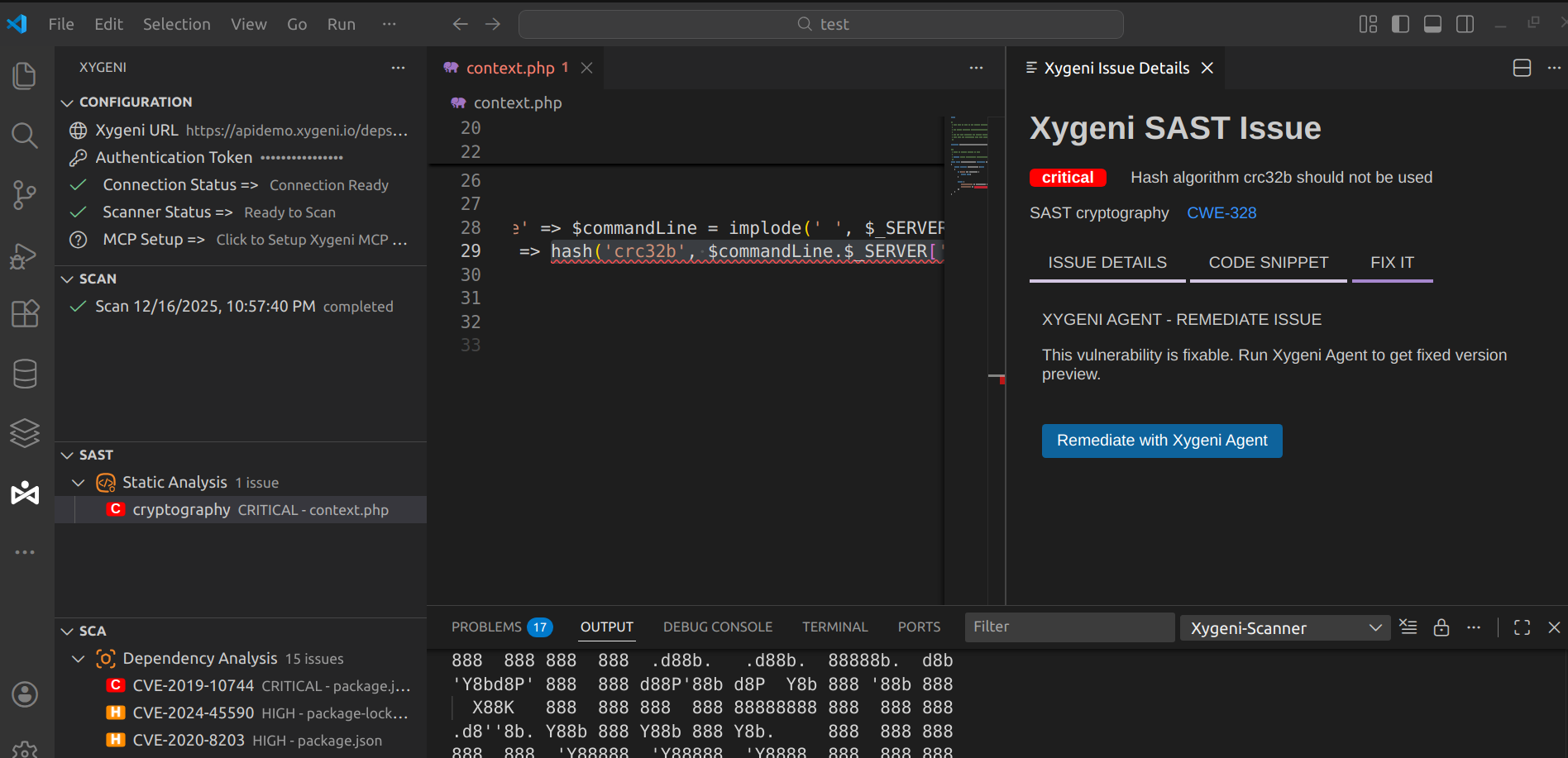
1. **Open the Xygeni View**: After installation, click on the Xygeni icon in the activity bar.
2. **Configure the Extension**:
* You will be prompted to configure the connection to the Xygeni service.
* Obtain an API token from your Xygeni Dashboard. If you don't have an account, you can sign up for a trial.
* Enter the Xygeni API URL and your token in the configuration view.
3. **Run a Scan**:
* Once configured, the "Scan" view will be available.
* Click the "Run Scanner" button (▶️) to initiate a scan of your workspace.
4. **View Results**:
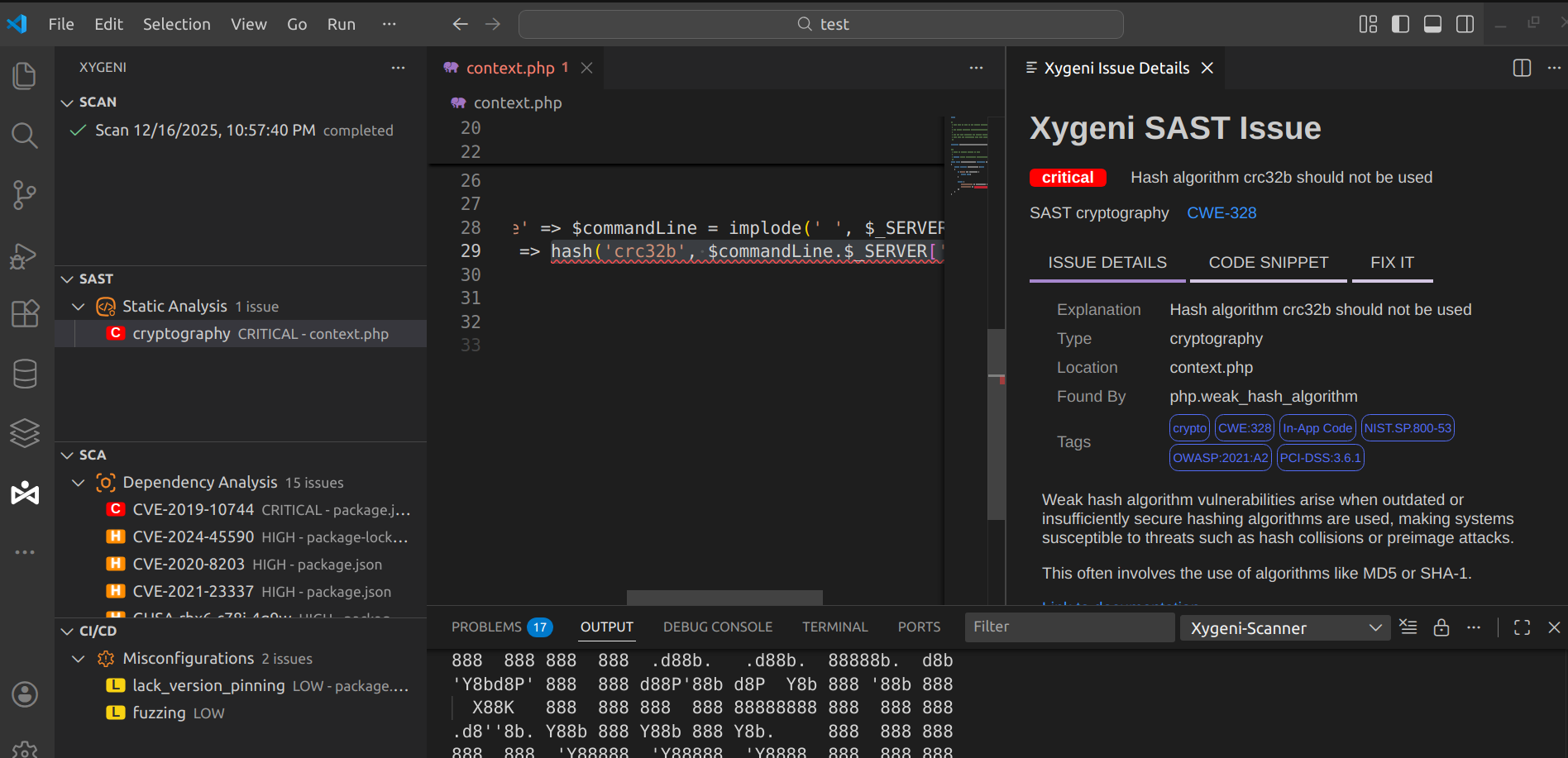
* Scan results will be displayed in the Xygeni view, categorized by type (SAST, SCA, Secrets, etc.).
* Click on an issue to see detailed information and navigate to the affected file and line.
### Extension Settings
This extension contributes the following settings (accessible via File > Preferences > Settings and searching for "xygeni"):
* `xygeni.api.xygeniUrl`: The URL of the Xygeni API server.
* `xygeni.api.xygeniToken`: Your Xygeni API token. It is recommended to store this securely.
* `xygeni.proxy.*`: A full set of options to configure a proxy.
### Screenshots
### Support & License
* **Support**: Contact us at .
* **License**: Apache License 2.0.
***
## Visual Studio 2026
Visit [Xygeni Visual Studio Extension](https://marketplace.visualstudio.com/items?itemName=xygeni-security.22221043359) at marketplace.
### Installation
1. Open **Extensions > Manage Extensions** in Visual Studio.
2. Search for **Xygeni Security for Visual Studio**.
3. Click **Install** and restart Visual Studio to complete the installation.
### Getting Started
1. **Open your project or solution** in Visual Studio.
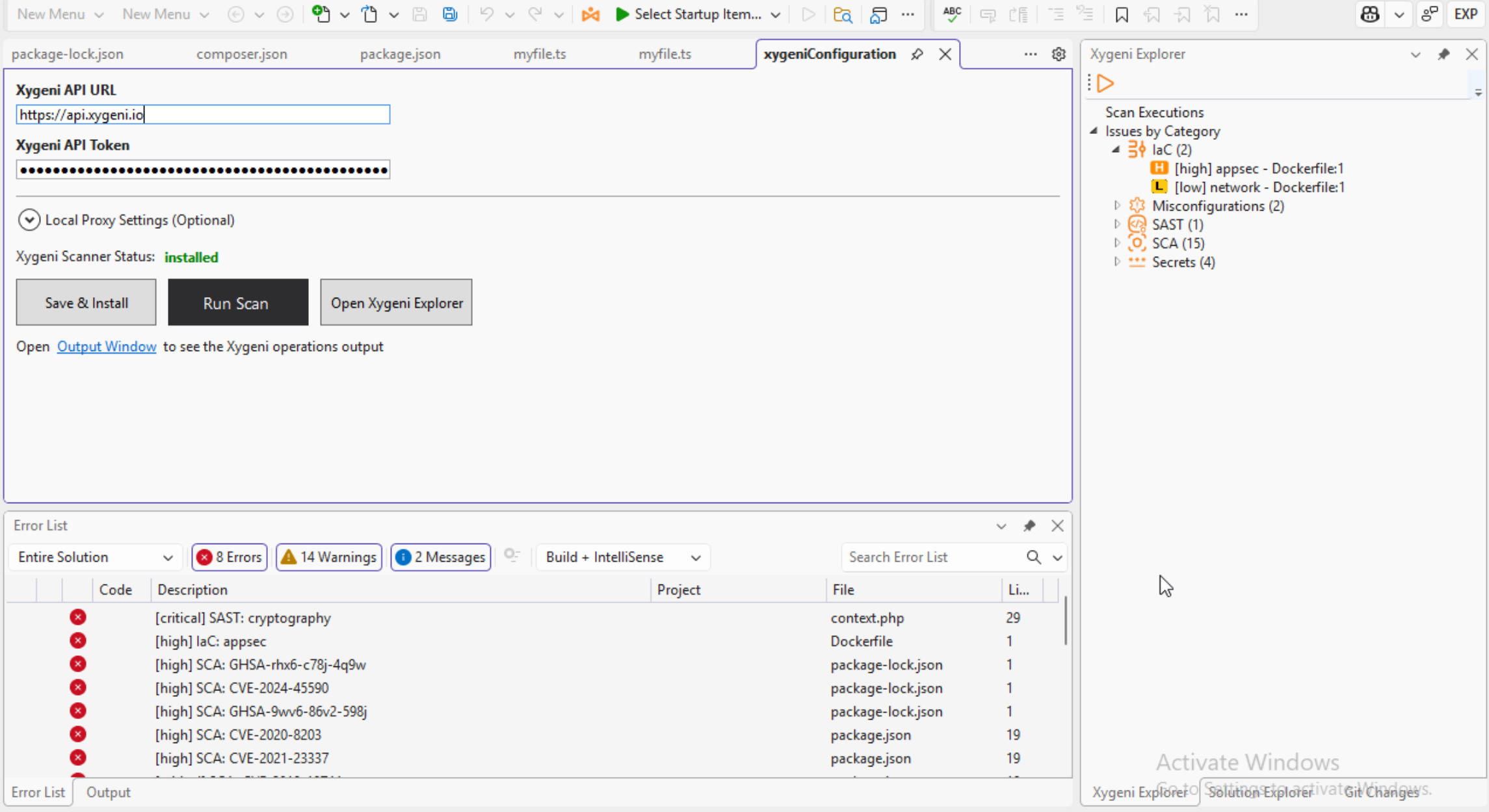
2. **Open the Xygeni setting** from the new Xygeni icon.
3. **Configure the extension**:
* Obtain an API token from your Xygeni Dashboard.
* Enter the Xygeni API URL and your token.
4. **Save & Install** to complete Xygeni CLI installation.
5. **Run a scan** to analyze your workspace.
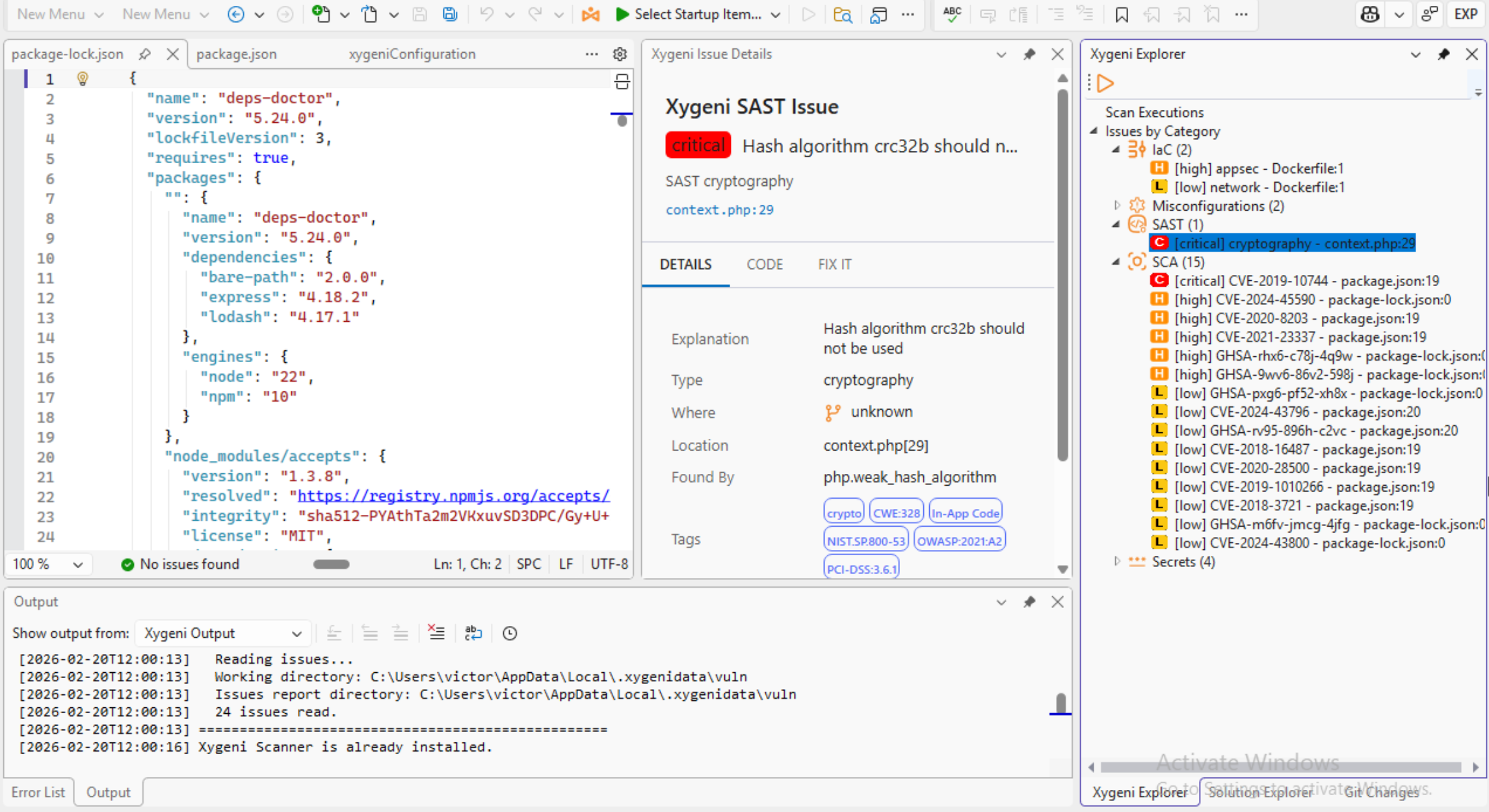
6. **Open Xygeni Explorer** and open issues to inspect affected files and remediation guidance.
### Screenshots
### Support & License
* **Support**: Contact us at .
* **License**: Apache License 2.0.
***
## IntelliJ (and JetBrains IDEs)
### Installation
* **Using the IDE built-in plugin system**: Settings/Preferences > Plugins > Marketplace > Search for "xygeni" > Install
* **Using JetBrains Marketplace**: Go to [JetBrains Marketplace](https://plugins.jetbrains.com/) and install it by clicking the "Install to ..." button.
* **Manually**: Download the latest release from JetBrains Marketplace and install it manually using Settings/Preferences > Plugins > ⚙️ > Install plugin from disk...
### Getting Started
1. **Install the plugin**: Once installed, the plugin automatically downloads and sets up the Xygeni Scanner.
2. **Open the Xygeni View**: Click the Xygeni icon in the activity bar to open the view and console.
3. **Configure the plugin**:
* Obtain an API token from your Xygeni Dashboard.
* Enter the Xygeni API URL and your API token when prompted or in the configuration view.
4. **Run a scan**: Click on the **Run scan** button to initiate a scan of your workspace.
5. **View results**:
* Scan results are displayed in the Xygeni view.
* Click twice on an issue to view detailed information in the editor.
6. **Fix issues**: On the detailed information panel, select the **FIX** tab to remediate the vulnerability.
***
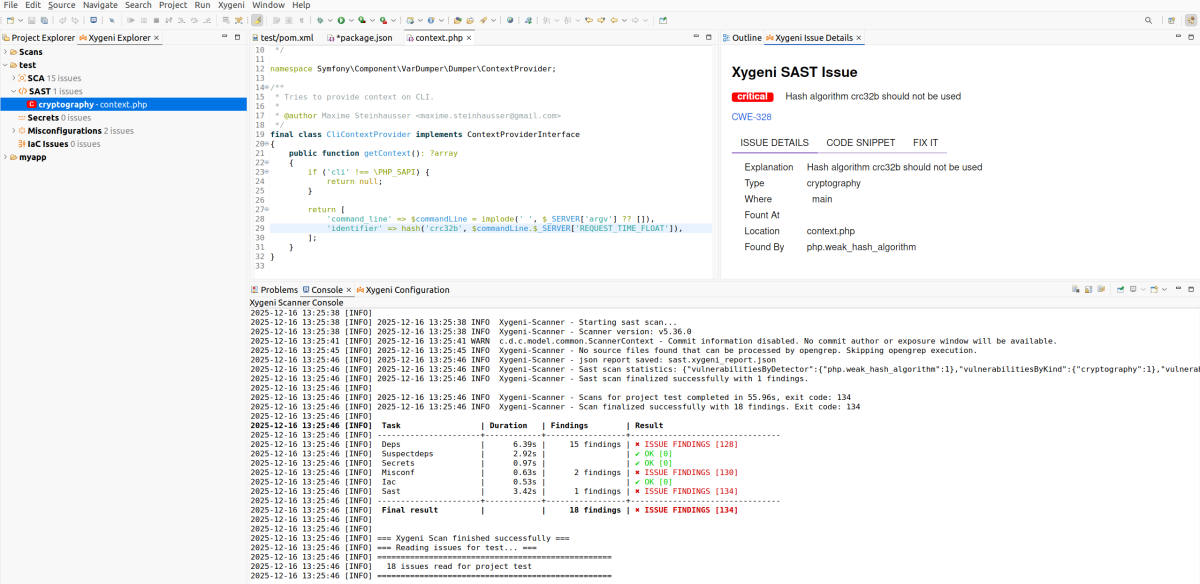
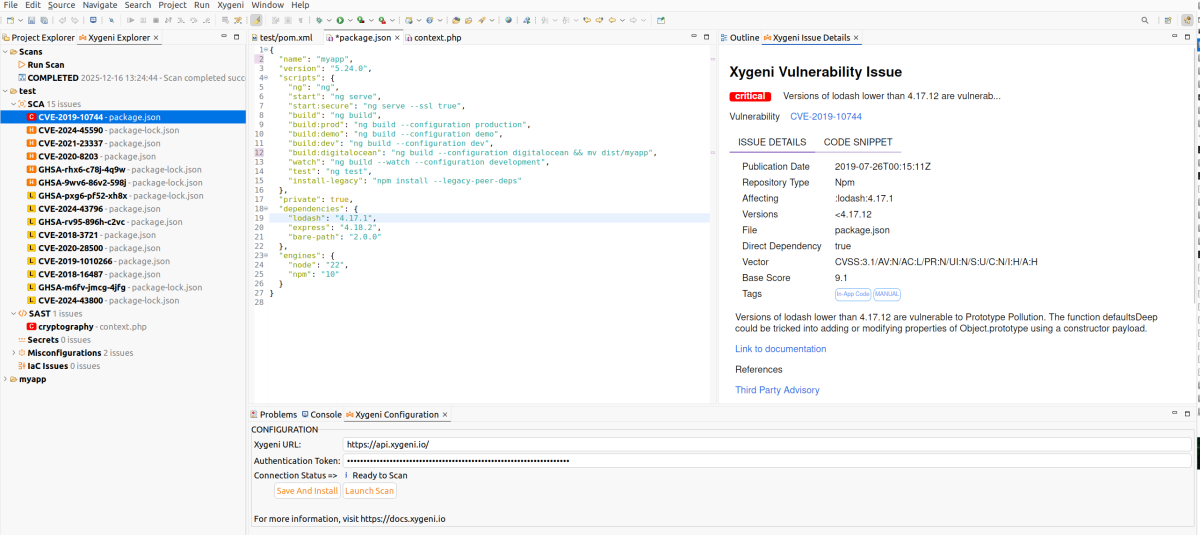
## Eclipse
### Installation
The plugin is available on the Eclipse Marketplace:
**Using Eclipse Marketplace Client**:
1. Open Eclipse and go to **Help > Eclipse Marketplace...**
2. Search for **Xygeni Security**.
3. Click **Install** and follow the prompts.
### Getting Started
1. **Open the Xygeni Views**:
* **Xygeni Explorer**: Go to Window > Show View > Other... > Xygeni > Xygeni Explorer.
* **Xygeni Issue Details**: Go to Window > Show View > Other... > Xygeni > Xygeni Issue Details.
2. **Configure the Extension**:
* Obtain an API token from your Xygeni Dashboard.
* Open **Xygeni Settings** (Preferences > Xygeni Configuration).
* Enter the **Xygeni API URL** and **Xygeni Token**.
* Click **Save and Install**.
3. **Run a Scan**:
* Open the Xygeni Explorer view.
* Click the **Run Scan** button (or select Xygeni > Xygeni Scan from the menu).
4. **View and Fix Results**:
* Expand categories in the Xygeni Explorer to see issues.
* Double-click an issue to open the file and view details in the **Xygeni Issue Details** view.
* Follow remediation guidance in the details view.
### Screenshots
### Support & License
* **Support**: Contact us at .
* **License**: Apache License 2.0
---
# Agent Instructions
This documentation is published with GitBook. GitBook is the documentation platform designed so that both humans and AI agents can read, navigate, and reason over technical content effectively. Learn more at gitbook.com.
## Querying This Documentation
If you need additional information that is not directly available in this page, you can query the documentation by asking a question.
Perform an HTTP GET request on the following URL with the `ask` and `goal` query parameters:
```
GET https://docs.xygeni.io/introduction-to-xygeni/supported-ide.md?ask=&goal=
```
`ask` is the immediate question: it should be specific, self-contained, and written in natural language.
`goal` is what the user is ultimately trying to achieve, the reason they need the answer. Sharing it helps GitBook give you a better, more relevant answer. A goal is most helpful when it describes the outcome the user wants rather than restating the question. For example, with `ask=how do I create an API token`, a goal like `automate deployments from our CI pipeline` lets GitBook tailor the answer to that use case.
The response will contain a direct answer to the question and relevant excerpts and sources from the documentation.
Use this mechanism when the answer is not explicitly present in the current page, you need clarification or additional context, or you want to retrieve related documentation sections.